Linux Basics for DevOps: Kernel, Distro, and Your First Commands
Part 2 of the free Linux for DevOps course: what Linux actually is, the difference between a kernel and a distro, why cloud VMs, containers, CI runners and Kubernetes nodes are all Linux, how you reach a server with SSH, and the three commands to run on any machine you've never seen.
In part one you installed Linux and typed your first commands. Now let's slow down and look at what you're actually sitting in front of. What is Linux, really? Why does every DevOps tool quietly assume it? And which commands do you type first on a machine you've never seen before?
This is part two of the free Linux for DevOps course, and the written companion to the second video. It's a short lesson on purpose. Nothing to install here, just the ideas that make everything after this make sense: kernel and distro, why the whole industry runs on Linux, and three commands you'll keep typing for the rest of your career.
Linux is a kernel. Everything else is packaging.
The word "Linux" gets used for two different things, and that's where most of the confusion starts.
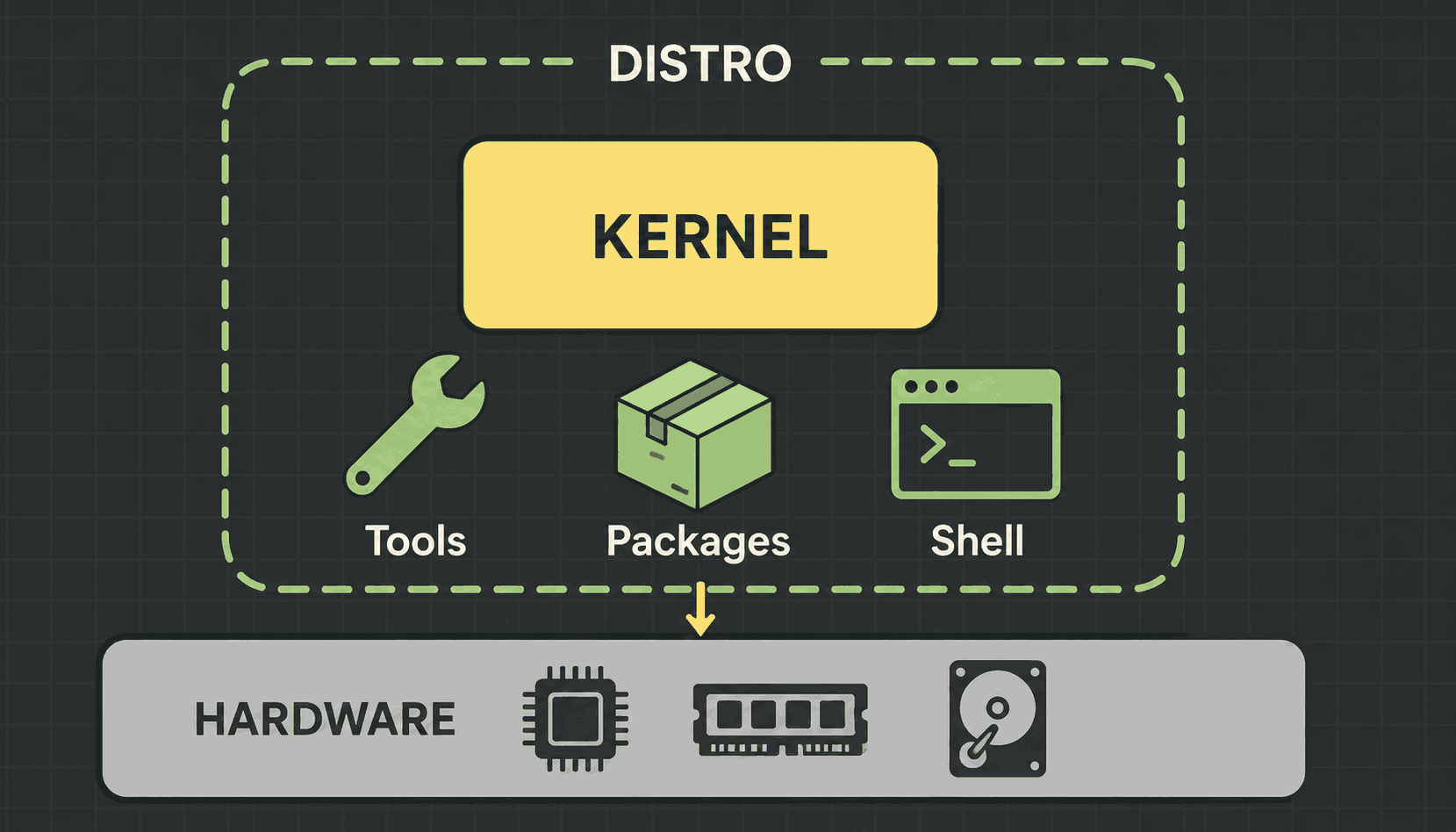
Linux itself is a kernel. The kernel is the code that talks to your hardware. It hands memory out to programs, shares the CPU between them, and moves data to the disk and the network card. That's the whole job. The kernel on its own doesn't give you a terminal, a text editor, or any way to install software.
A distribution, or distro for short, is that kernel plus everything that makes it usable. A shell to type into. The standard commands like ls and cp. A package manager for installing new software. Sensible defaults so the machine boots and behaves.
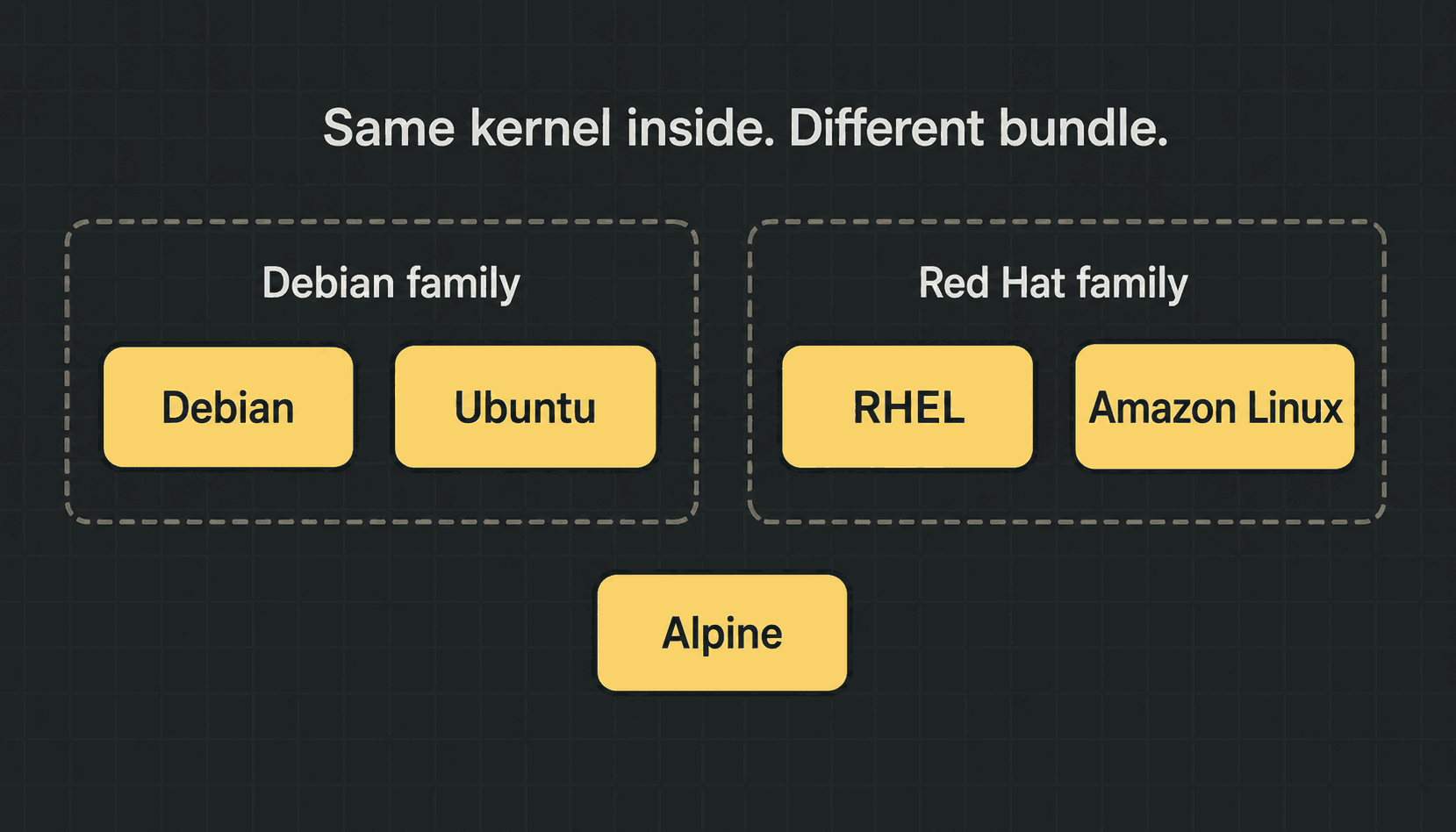
So when someone says "we run Linux in production", they mean a distro. Ubuntu, Debian, RHEL, Amazon Linux and Alpine all ship the same kernel with different things wrapped around it.
The distro families you'll actually meet
There are hundreds of distros. In DevOps work you'll meet about five, and they fall into three groups:
- →The Debian family — Debian and Ubuntu. Installs software with apt. Ubuntu is the default image on nearly every cloud and the most common base image in Docker.
- →The Red Hat family — RHEL, Rocky Linux, AlmaLinux and Amazon Linux. Installs software with dnf (older systems use yum). Common in banks, telecoms and large enterprises.
- →Alpine — a tiny distro that lives almost entirely inside containers. Installs with apk, and is only a few megabytes, which is why images built on it are so small.
Same kernel underneath all of them. For most everyday work, the gap between the families comes down to one command:
# Debian / Ubuntu
sudo apt install -y nginx

# RHEL / Rocky / Amazon Linux
sudo dnf install -y nginx

# Alpine (inside containers)
apk add --no-cache nginx
Don't spend a week choosing. Learn Ubuntu, because that's what most tutorials, cloud images and Dockerfiles use, so what you type will match what you read. Moving to the Red Hat family later takes an afternoon, not a career change.
Why DevOps runs on Linux
Think about a normal day in a DevOps job, and follow where the work actually lands.
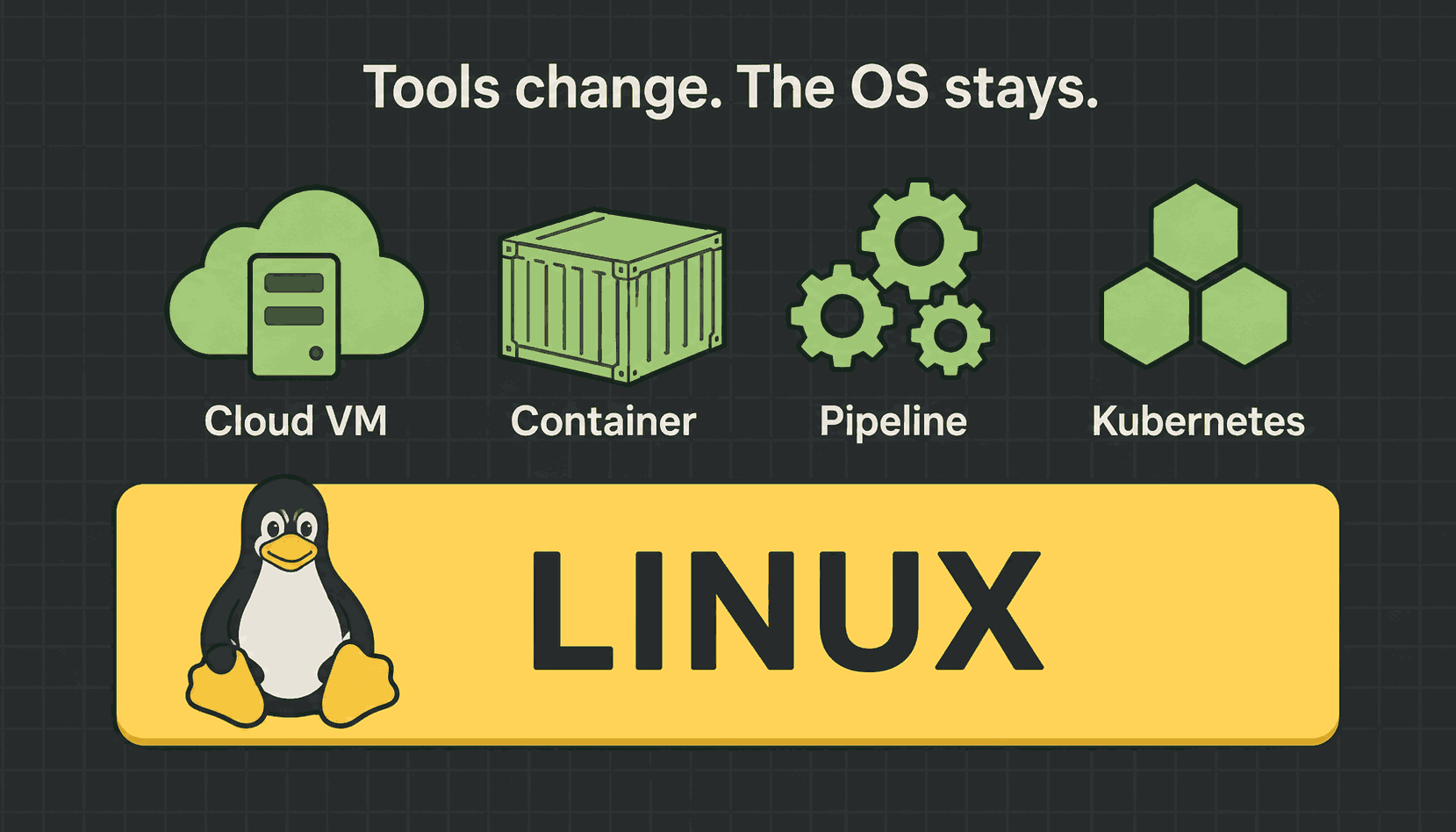
- →You deploy an app to a cloud virtual machine. That VM runs Linux.
- →Your app runs inside a Docker container. Every container is a Linux process on a Linux host.
- →Your pipeline runs on a CI/CD runner. A GitHub Actions runner is an Ubuntu machine.
- →Your cluster schedules pods onto Kubernetes nodes. Every node is a Linux box.
Notice the pattern. The tools keep changing. Ten years ago it was Jenkins and Chef, today it's GitHub Actions and Terraform, and in five years it'll be something with a name nobody has invented yet. The operating system under all of them stays the same.
That's the real argument for learning Linux first. It's the one skill on the DevOps roadmap that doesn't expire.
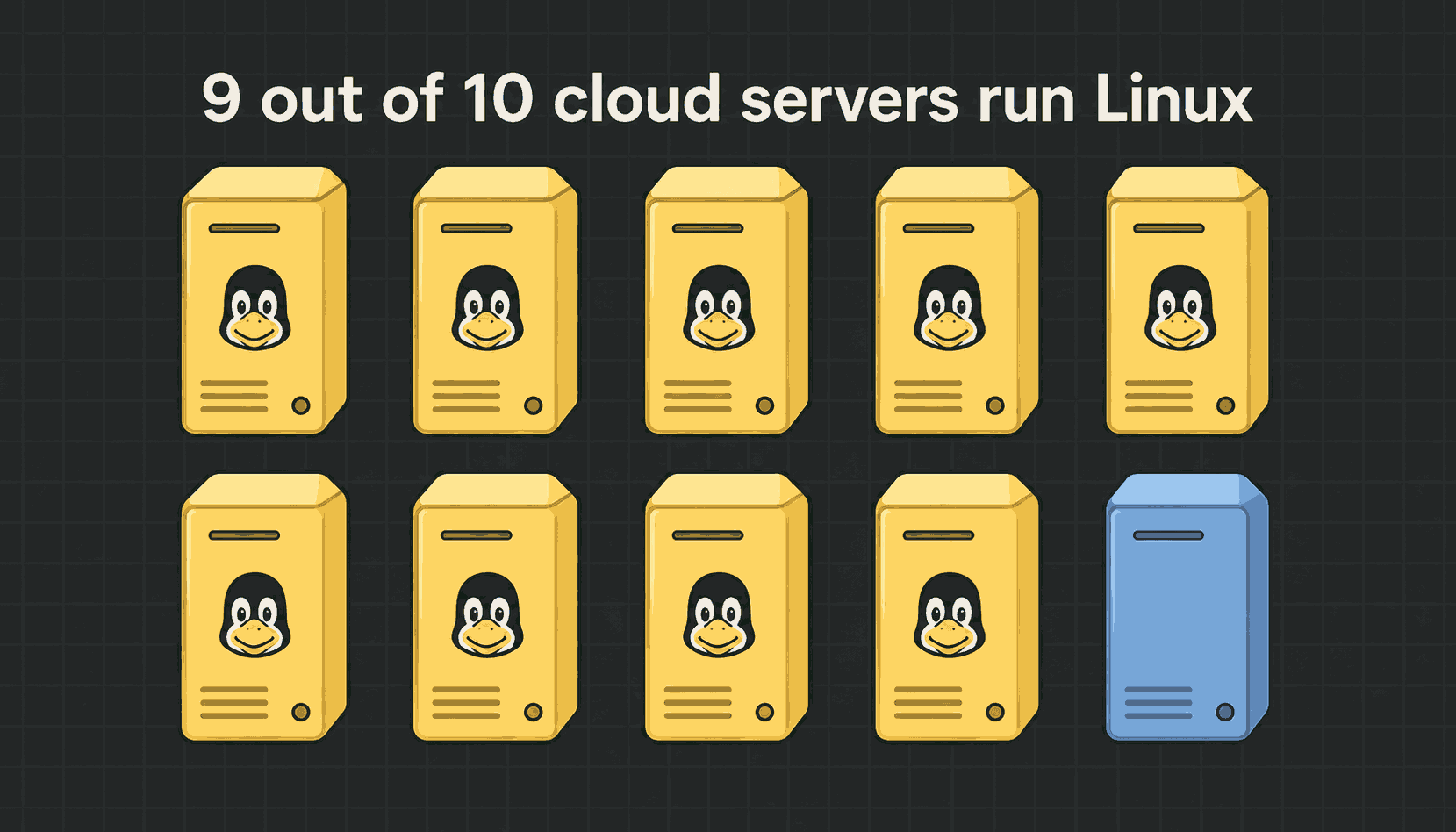
More than 9 out of 10 cloud servers run Linux
That isn't a slogan, it's just what the market looks like. Open AWS, Google Cloud, Azure or DigitalOcean and start a server. The default image is Linux. The cheapest image is Linux. Most of the documentation assumes Linux.
So when a job ad asks for "experience with cloud infrastructure", it quietly means Linux. When it says "container experience", that means Linux too. You can absolutely be a DevOps engineer on a Windows laptop. But the thing you deploy to will be a Linux machine, and one day it will break, and someone will expect you to fix it through a terminal.
Free, scriptable, stable
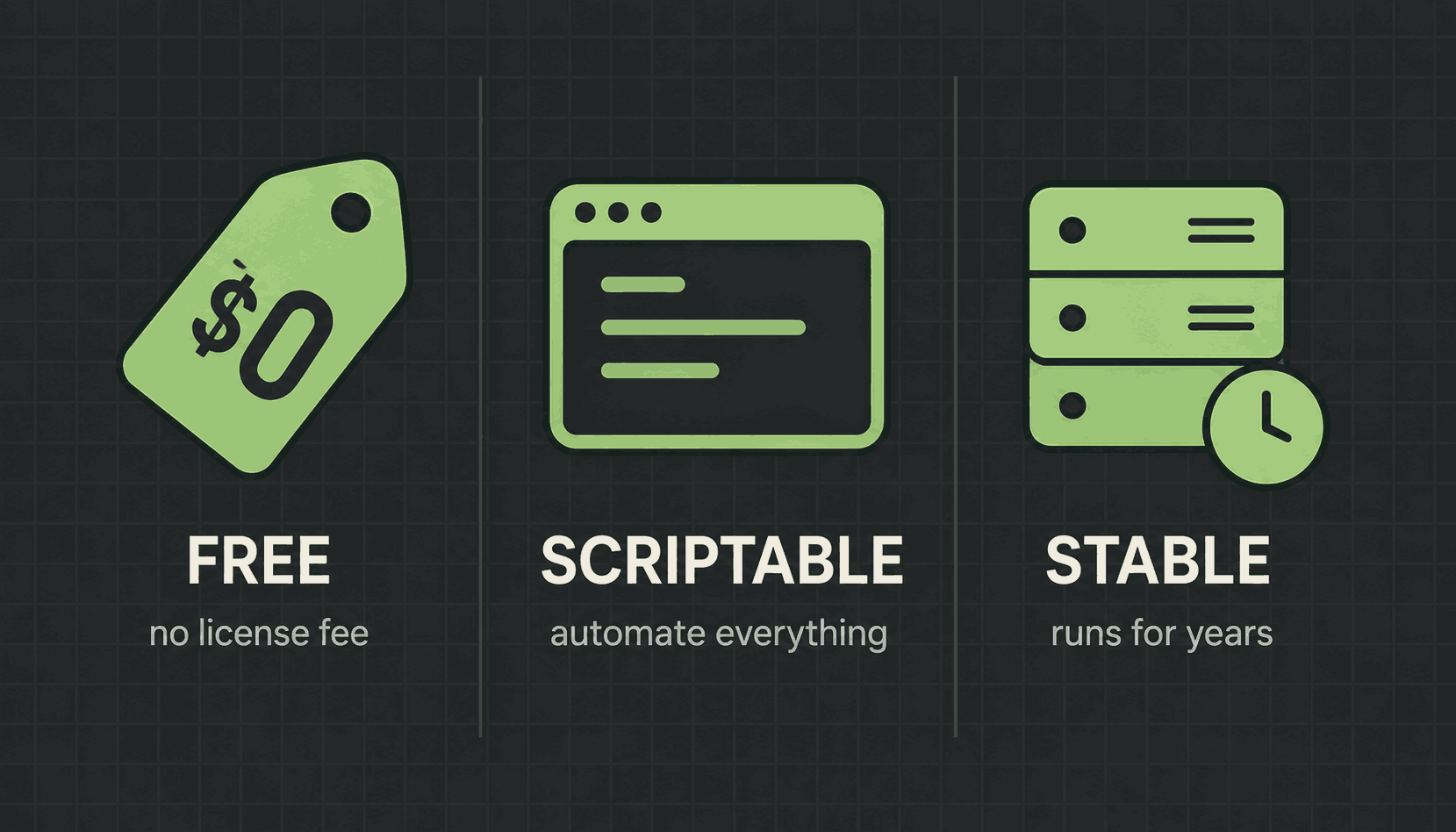
Three reasons the industry settled here, and each one has a consequence you'll feel in the work.
Free means no license fee, per server. You can start one VM or ten thousand and the operating system costs nothing either way. Your bill scales with hardware, not with permission slips, and that's exactly why a cloud provider can rent you a server for a few dollars a month.
Scriptable means anything you can do by hand, you can put in a file and run again tomorrow. That isn't a nice extra, it's the entire idea of automation. Every deployment script, every pipeline and every Ansible playbook exists because Linux can be driven by text instead of by clicking.
Stable means a well-kept Linux server runs for months or years without a reboot, and most software can be updated while the machine keeps serving traffic. When uptime is the number you're measured on, that matters a lot.
Learn once, and it works everywhere
This is my favourite part, and it's the reason this course is worth your time.
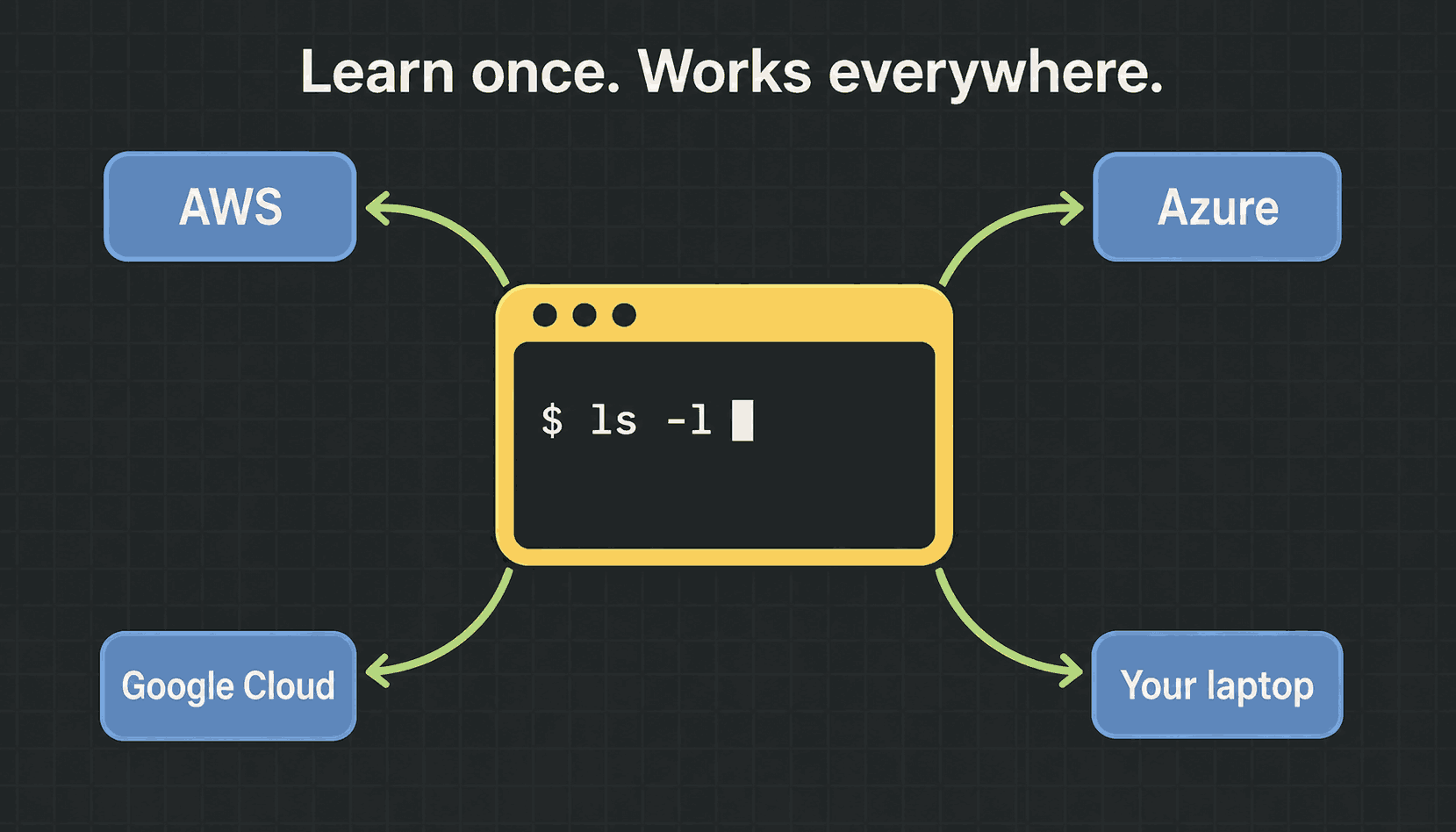
The commands in this series behave the same on AWS, on Azure, on Google Cloud, inside a Docker container, on a Raspberry Pi, and on the Ubuntu machine you installed in part one. ls -l is ls -l everywhere. There's no cloud-specific version to relearn.
Compare that with the rest of the roadmap. Every cloud has its own console, its own CLI and its own name for the same thing. Linux is the layer where that stops. Learn it once and you carry it into every job, every company, and every tool you pick up afterwards.
How you actually reach a server: SSH
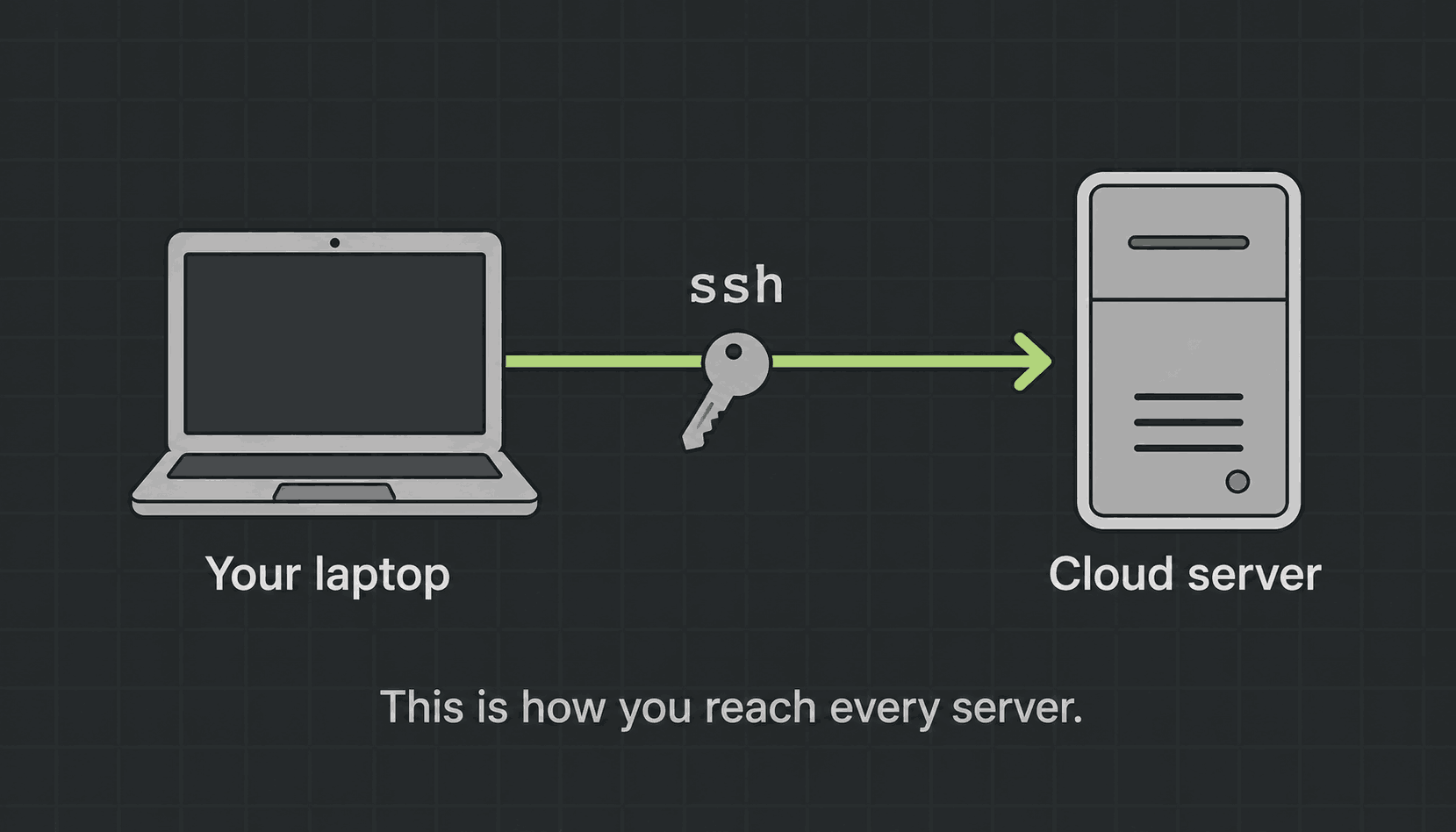
One thing surprises almost everyone new to servers. There's no screen. A cloud server has no monitor, no keyboard and no desktop. So how do you use it?
You connect over the network with ssh, short for secure shell. You type one command on your laptop and you get a prompt on the remote machine, as if you were sitting in front of it.
$ ssh muh@203.0.113.10       # connect as user "muh" to that server

# once you are in, the prompt changes to the remote machine:
muh@web-01:~$ whoami
muh

muh@web-01:~$ exit           # go back to your own laptop
We cover SSH properly in module 3, including keys instead of passwords. For now just learn the shape of it. ssh is how every server you'll ever work on gets reached, and it's an ordinary Linux command like any other.
Your first three commands on any machine
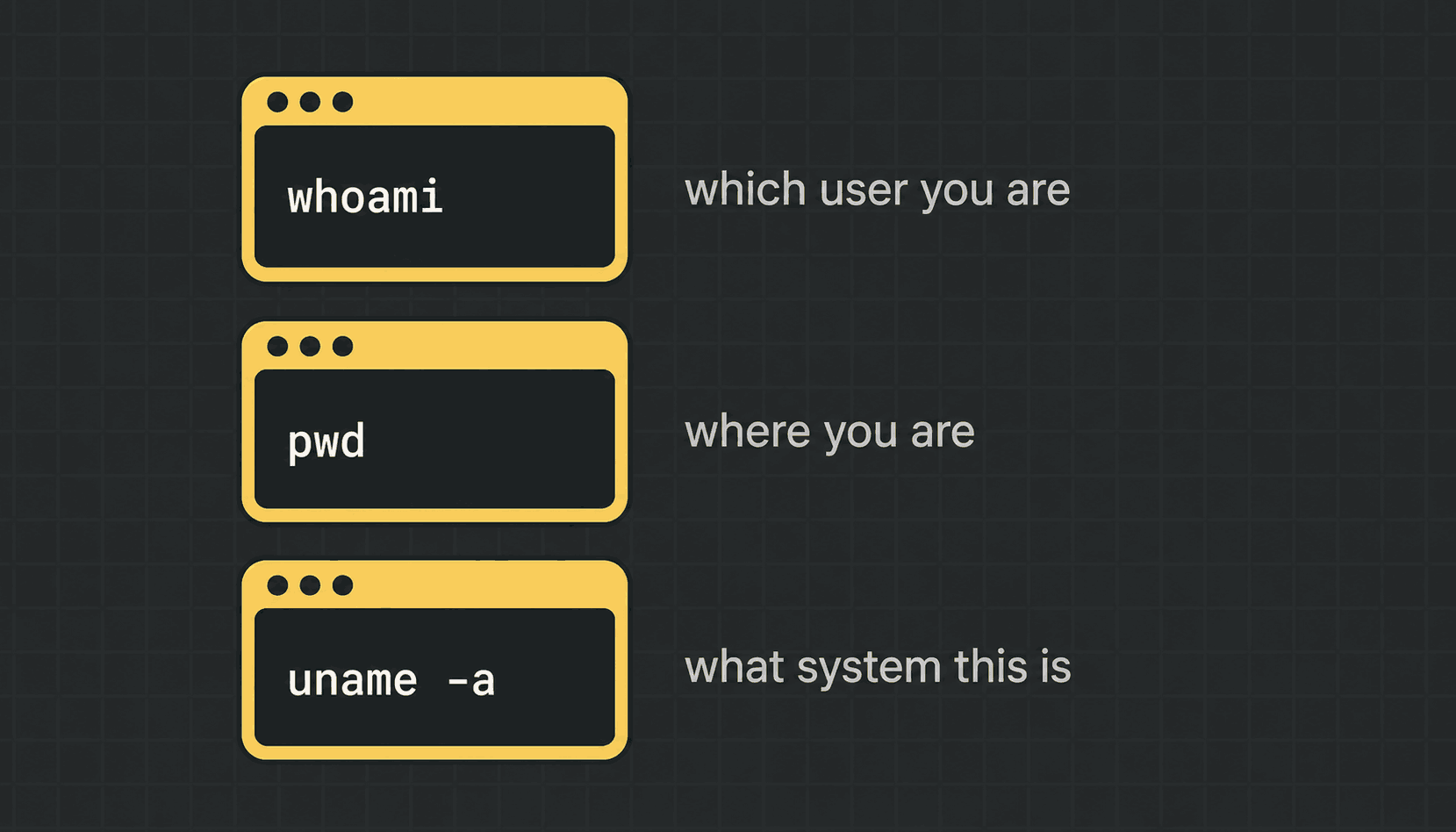
When you land on a server you've never seen, three commands get you oriented. Type them out, please don't paste them.
$ whoami                  # which user am I logged in as?
ubuntu

$ pwd                     # print working directory - where am I?
/home/ubuntu

$ uname -a                # what is this machine, and which kernel?
Linux web-01 6.8.0-51-generic #51-Ubuntu SMP x86_64 GNU/Linux
whoami answers who. That matters more than it looks, because the same command can succeed or fail depending on which user runs it. A good share of all "permission denied" problems are really a whoami problem.
pwd answers where. The shell always has one current folder, and every short path you type is measured from it. When a command insists there's no such file, pwd is the first thing to check.
uname -a answers what. It prints the kernel version and the CPU architecture. That last part matters more than it used to: an image built for x86_64 won't run on an arm64 machine, and this is how you find out which one you're standing on.
Three questions, three commands: who am I, where am I, what is this. Make it a habit to run them before you change anything on a machine you don't know.
Where to practise this
You need a terminal in front of you, and there are three ways to get one:
- →The Linux machine you installed in part one, with WSL on Windows or Multipass on a Mac. This is the best option, because it's genuinely yours and you're allowed to break it.
- →The browser playground at devopsbymuh.com/tools/linux-playground. A real Linux terminal with nothing to install, which is handy on a locked-down work laptop or on your phone.
- →The course repo at github.com/codewithmuh/linux-course. Every lesson has a folder with the commands written out, so you can work through the list at your own pace.
Whichever you pick, type the commands yourself. Copy-paste trains your clipboard, not you.
What's next
That's the whole of the basics. It's a short lesson because it's mostly vocabulary, and vocabulary is what makes the next sixteen lessons readable instead of confusing.
- →Linux is a kernel. A distro is that kernel plus a shell, the standard commands and a package manager.
- →Ubuntu and Debian install with apt, the Red Hat family with dnf, Alpine with apk. Nearly everything else is identical.
- →Cloud VMs, containers, CI runners and Kubernetes nodes are all Linux. The tools change, the OS doesn't.
- →It's free, it's scriptable and it's stable, and the commands you learn work on every platform you'll touch.
- →ssh is how you reach a server. whoami, pwd and uname -a are how you get your bearings once you're on it.
Part three is where you stop reading and start moving. We map out the Linux file system, so you know what really lives in /etc, /var and /home, and then navigate all of it from the keyboard with pwd, ls, cd, mkdir, touch, cp, mv and find. Open your terminal and I'll see you there.
$ ./work-with-me.sh
Want this in your job, not just your notes?
I take engineers from wherever they are to hired-in-6-months — real projects, code reviews, and mock interviews. Or if you just need a hand shipping something to production, let's work together.
or subscribe on YouTube — free, forever.
$ subscribe --new-articles
Get new articles in your inbox
One email when a new hands-on guide goes live — Kubernetes, AWS, CI/CD, MLOps. No spam, unsubscribe anytime.