Linux File System and Navigation: Move Around Any Server Without a Mouse
Part 3 of the free Linux for DevOps course: the map of a Linux system — what /etc, /var and /home are really for — plus pwd, ls -la, cd, mkdir -p, touch, cp, mv, rm, find and head/tail, with the mistakes that catch every beginner.
There's no Finder here. No Explorer, no double-click, no drag and drop. On a server you get a prompt and a keyboard, and everything you do to a file happens through something you type. That sounds slower than clicking. It isn't, and once it clicks you'll miss it on your own laptop.
This is part three of the free Linux for DevOps course, and the written companion to the third video. We cover two things that belong together: the map of a Linux system, so you know where things live and why, and the handful of commands that move you around it. By the end you'll be able to land on a server you've never seen, find your way to the logs, create what you need, and copy files between folders without guessing.
One tree, one root
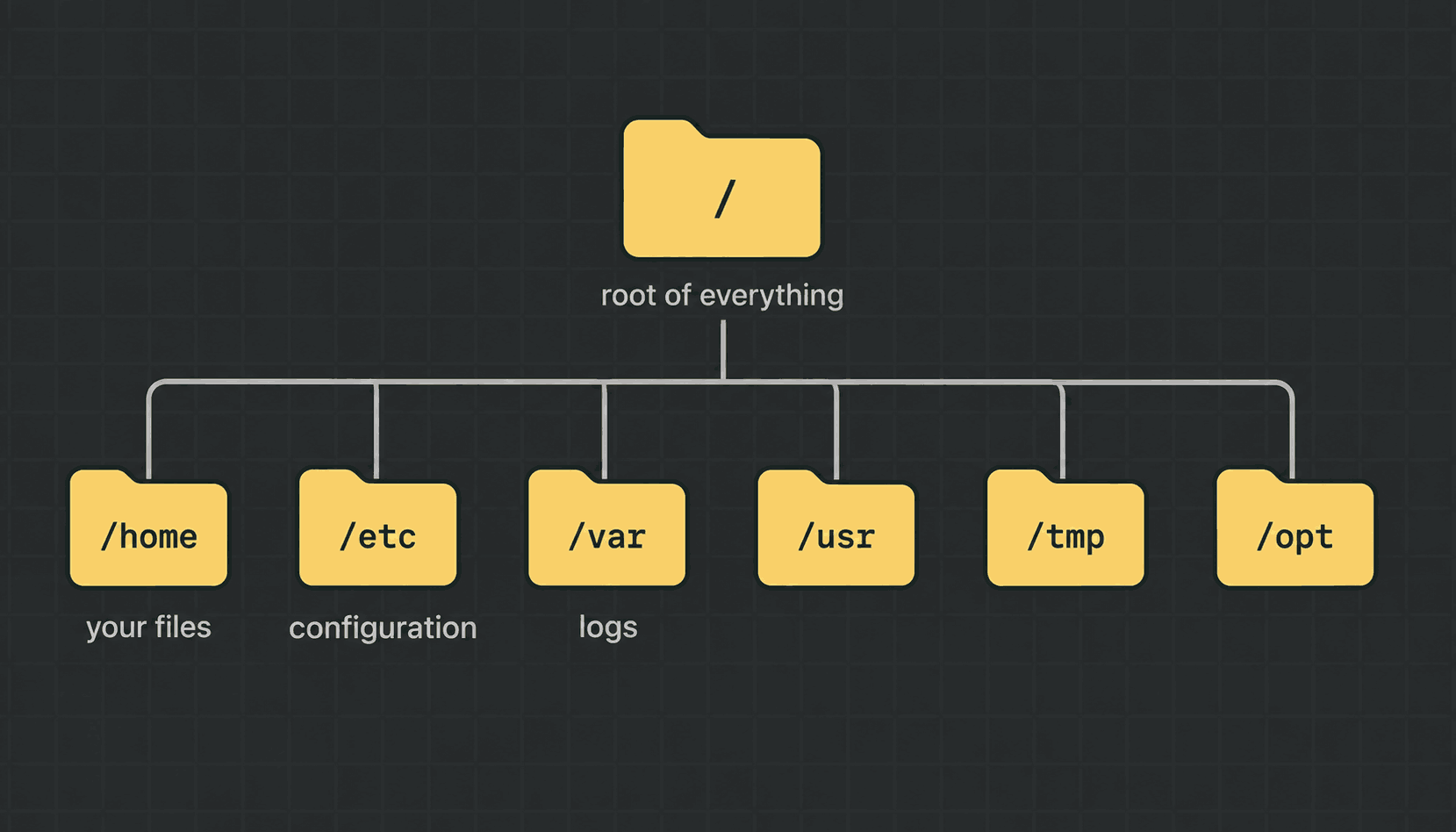
Windows gives you several drives: C:, D:, and a fresh letter for every USB stick. Linux doesn't work that way. There is exactly one tree, and it starts at a single forward slash, /. That slash is called the root of the file system.
Everything else hangs off it. Extra disks, USB sticks and network shares don't get their own letters. They get attached to a folder somewhere inside that one tree, which is what "mounting" means. It's also why a Linux path never starts with a drive letter.
The layout is roughly the same on every distro, and that's the useful part. Learn it on Ubuntu and it still makes sense on a Red Hat box you've never touched. These are the folders you'll actually open:
- →/home — personal folders for normal users. Your files live in /home/yourname, written as ~ for short.
- →/root — the administrator's home folder. Careful: this is not the same as /, even though both get called "root" in conversation.
- →/etc — configuration files. Nearly every "edit the config" instruction you'll ever read points here. It's plain text, which is why config can live in Git.
- →/var — data that changes while the machine runs. /var/log holds the log files, and it's the folder you'll open most during an incident.
- →/usr — installed programs and their supporting files. /usr/bin holds most of the commands you type.
- →/bin and /sbin — core commands, and commands meant for the administrator. On modern systems these just point into /usr.
- →/tmp — scratch space. Anyone can write here and it's usually wiped on reboot, so never leave anything you care about in it.
- →/opt — where third-party software often installs itself, in one self-contained folder.
- →/proc and /sys — not real files on a disk. The kernel invents these on the spot to show you live information about the running system.
You don't need to memorise that list today. Two entries earn their keep immediately: /etc when something is configured wrong, and /var/log when something is broken.
Absolute and relative paths
Every path you type is one of two kinds, and mixing them up is the most common beginner mistake there is.
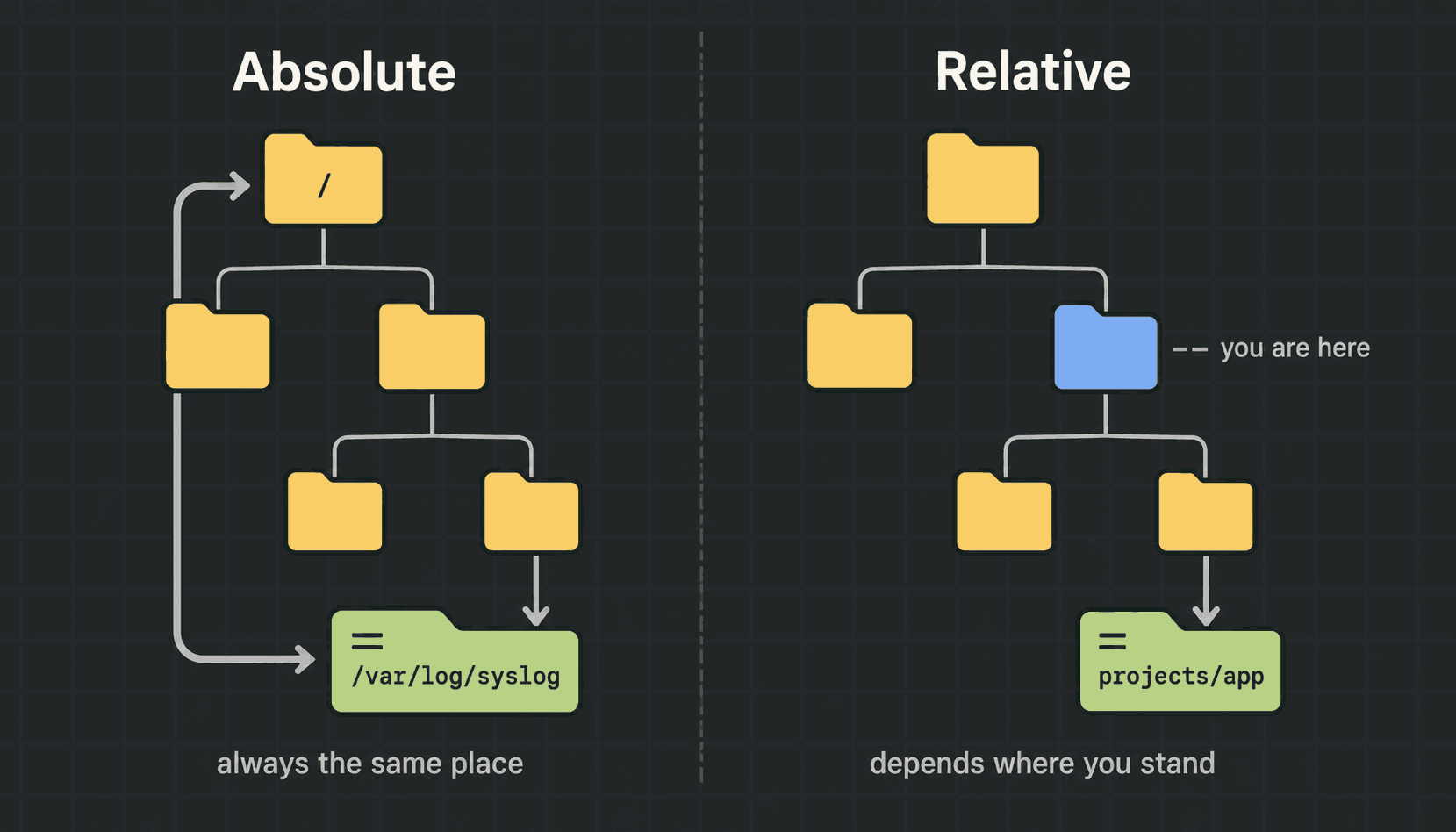
An absolute path starts with / and is measured from the root of the tree. /var/log/syslog means the same file no matter where you're standing when you type it.
A relative path doesn't start with a slash. It's measured from wherever you are right now. If you're in /home/muh, then projects/app means /home/muh/projects/app. Walk somewhere else and that same text points somewhere else entirely.
Four shortcuts show up everywhere, so learn them early:
.        the folder I am in right now
..       one folder up (the parent)
~        my home folder, for example /home/muh
- the folder I was in just before this one$ cd /var/log # absolute - always the same place
$ cd ../etc # relative - up one level, then into etc
$ cd ~ # straight home, from anywhere
$ cd - # jump back to where I just wasRule of thumb: use absolute paths in scripts and in anything that runs later without you watching, because they can't be wrong. Use relative paths when you're typing by hand and you're already nearby.
Where am I, and what's here? pwd and ls
Two commands answer the first two questions you'll have on any server.
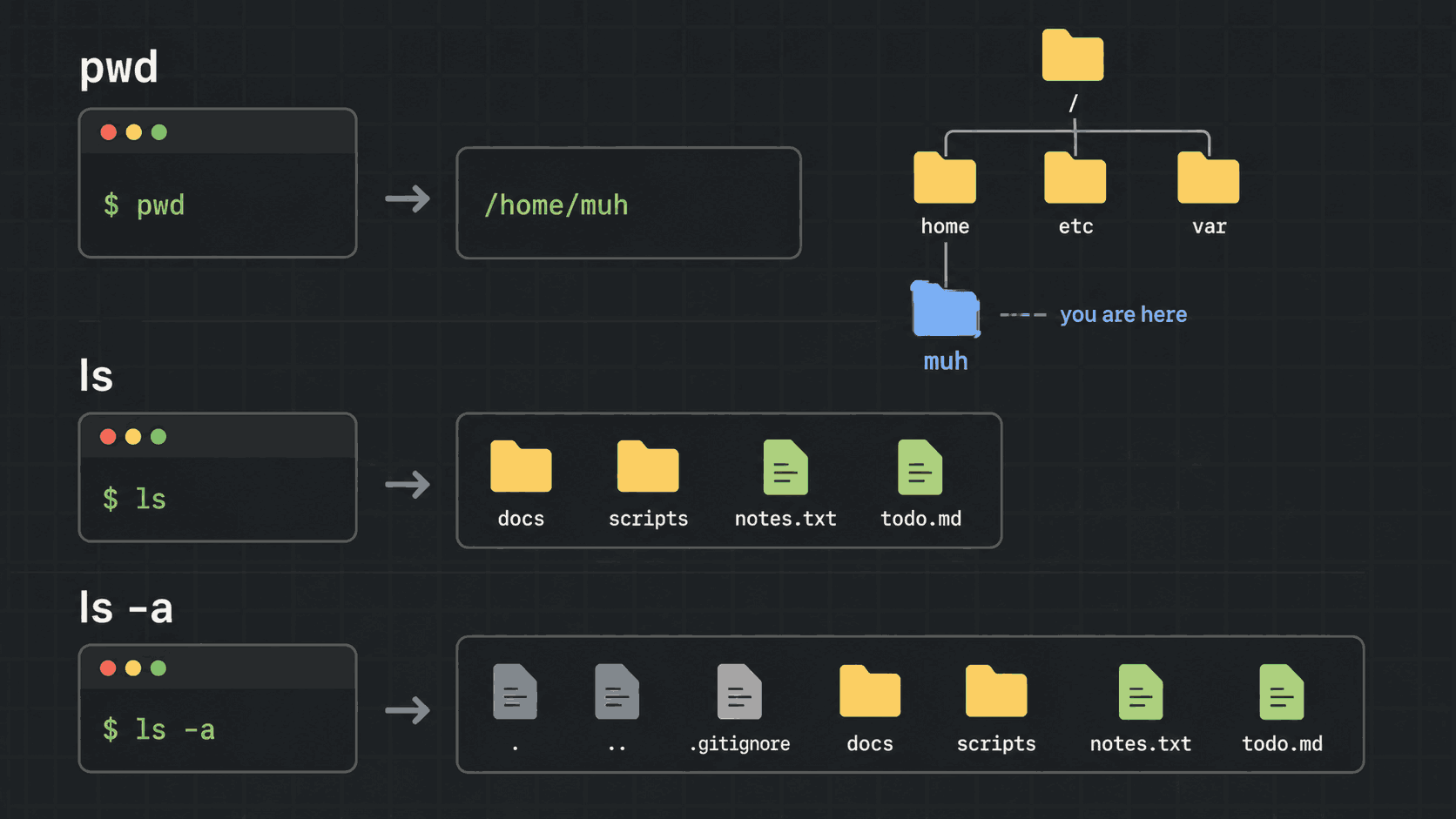
$ pwd                  # print working directory
/home/muh

$ ls                   # list what is in this folder
Desktop  Documents  projects  notes.md
pwd prints your current folder as a full absolute path. It answers "where am I", and it's the first thing to check when a command insists a file doesn't exist.
ls lists what's in the folder. On its own it shows the ordinary files and hides anything whose name starts with a dot. Linux uses dot-files for configuration constantly, so a folder that looks empty often isn't:
$ ls
(nothing)

$ ls -a                # -a = all, including hidden dot-files
.  ..  .bashrc  .profile  .ssh
That's the whole difference between ls and ls -a, and it catches people every week. If you clone a repository and can't see .git or .github, you needed -a.
The other flag worth learning on day one is -l, the long listing. Most people just bundle both together as -la:
$ ls -la
total 32
drwxr-xr-x 4 muh  muh  4096 Aug  1 09:14 .
drwxr-xr-x 3 root root 4096 Jul 30 18:02 ..
-rw-r--r-- 1 muh  muh  3771 Jul 30 18:02 .bashrc
drwxr-xr-x 3 muh  muh  4096 Aug  1 09:14 projects
-rw-r--r-- 1 muh  muh    64 Aug  1 09:12 notes.md
You don't need to read all of that yet. Notice two things only. A line starting with d is a folder, and a line starting with - is a file. Those rwx letters are permissions, and they get a whole lesson to themselves in module 2. For now, ls -la is simply what you type when plain ls doesn't tell you enough.
Moving around with cd
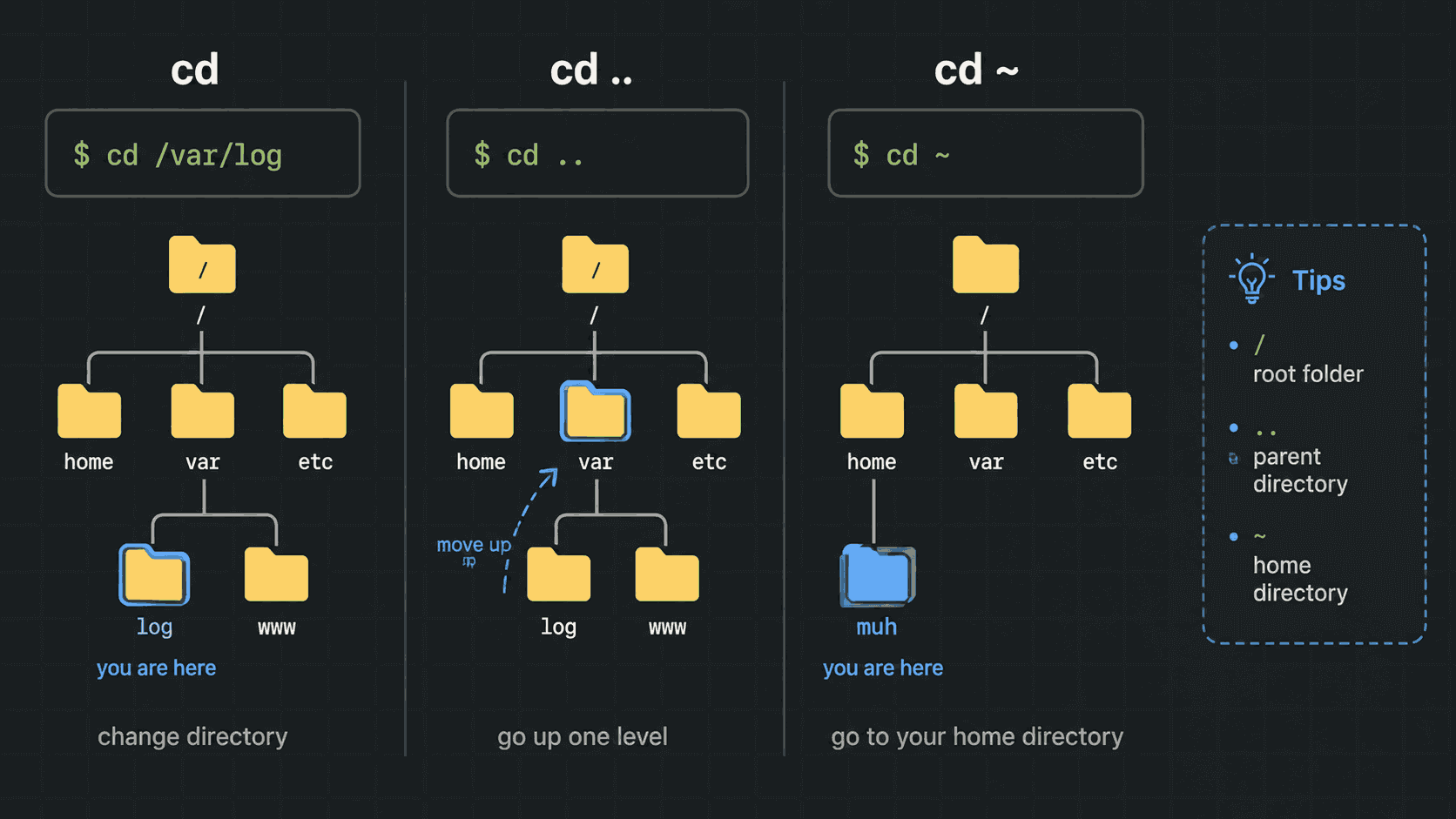
cd means change directory. It's how you walk the tree, and it takes either kind of path.
$ cd projects          # go into a folder below me
$ cd projects/app      # go two levels in one step
$ cd ..                # go back up one level
$ cd /var/log          # jump straight to an absolute path
$ cd                   # with nothing after it: go home
$ cd -                 # go back to the previous folder
That bare cd is worth remembering. Whatever tangle of folders you've walked into, typing cd on its own and pressing Enter puts you back home. One correction on the video, where I called it "going back to the root": it takes you to your home folder, /home/yourname, not to / at the very top of the tree. Both get called "root" in casual speech, and it's worth keeping them apart in your head.
One habit here will save you hours. Press Tab. Type cd pro, hit Tab, and the shell completes projects for you. Press Tab twice when several names match and it lists the options. It's faster than typing and it removes an entire category of typos.
And when you do get lost, you already have the fix. pwd tells you where you are, ls tells you what's around you, cd .. backs you out.
Making folders and files: mkdir and touch
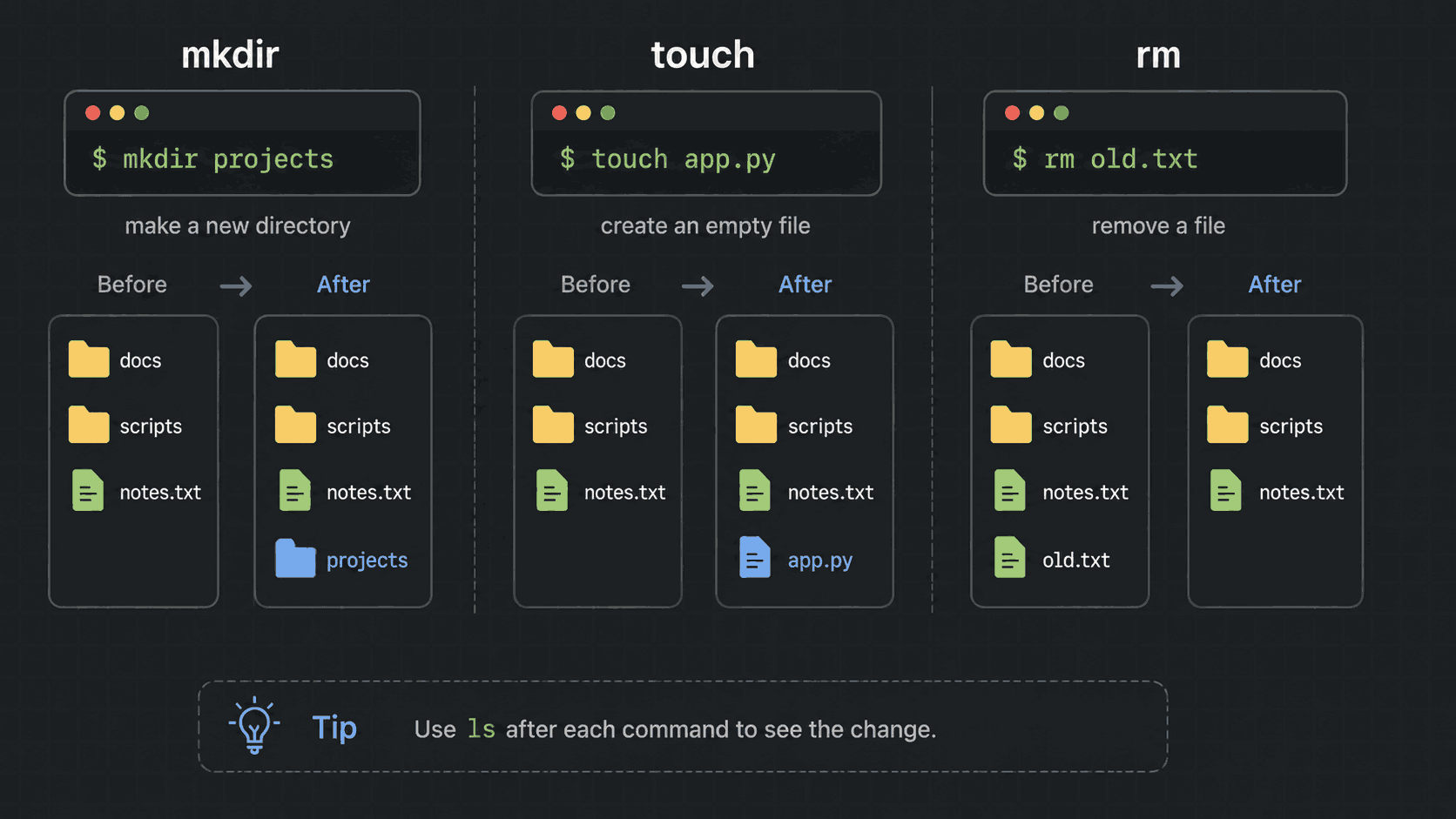
mkdir makes a directory. The name is short for "make directory", and once you see that, it stops looking like random letters.
$ mkdir projects            # create one folder here
$ ls
projects
Now try to create a folder inside a folder that doesn't exist yet:
$ mkdir projects/app/config
mkdir: cannot create directory 'projects/app/config': No such file or directory
That error is correct behaviour, not a bug. mkdir creates one level, and it won't invent the missing app folder in the middle. You have two ways forward: create each level in turn, or ask mkdir to fill in the gaps with -p.
$ mkdir -p projects/app/config   # -p = create parent folders as needed

$ ls projects/app
config
-p is the flag you'll actually use, because real folder structures are more than one level deep. It has a quiet second benefit too: mkdir -p doesn't complain when the folder already exists, which is exactly what you want inside a script that might run twice.
For files, the quickest way to create an empty one is touch:
$ cd projects/app
$ touch README.md
$ ls
README.md

$ touch a.txt b.txt c.txt    # several at once is fine
touch was originally built to update a file's timestamp, and it still does that on files that already exist. Creating an empty file was a side effect, and it turned out to be more useful than the original job.
Copy and move: cp and mv
These two look alike and do something importantly different. Both take the same shape: the thing you're acting on first, where it should end up second.
cp  source  destination      # copy: original stays
mv  source  destination      # move: original is gone
cp copies. The original stays exactly where it was, and a second copy appears at the destination:
$ cd ~/projects/app
$ ls
README.md

$ cp README.md /tmp/            # copy it into /tmp

$ ls                            # the original is still right here
README.md

$ ls /tmp
README.md
mv moves. The file arrives at the destination and disappears from where it started:
$ mv README.md /tmp/notes.md    # move it, and rename it on the way

$ ls                            # this folder is empty now
(nothing)

$ ls /tmp
README.md  notes.md
That second example shows the other half of mv. Linux has no separate rename command, because it doesn't need one. Renaming is just moving a file to a new name in the same folder:
$ mv notes.md meeting-notes.md # same folder, new name = a renameTwo things to watch. Both cp and mv overwrite the destination without asking. If a file of that name is already there, it's replaced, and there's no undo and no recycle bin. Add -i to be asked first, which is a sensible habit on anything you care about:
$ cp -i README.md /tmp/          # ask before overwriting
$ mv -i notes.md /tmp/           # same for move
And to copy a whole folder rather than a single file, cp needs -r, for recursive. If you ever see "omitting directory", that's cp telling you the same thing:
$ cp projects /tmp/
cp: -r not specified; omitting directory 'projects'

$ cp -r projects /tmp/           # copy the folder and everything inside it
One more mistake is worth making on purpose, because you'll make it anyway. When mv or cp says "no such file or directory", nine times out of ten you aren't where you think you are. Run pwd, then ls, then try again. That short loop solves almost every path problem you'll ever hit.
Deleting, and the one rule that saves you
rm removes files. Like cp, it needs -r to deal with a folder.
$ rm notes.md              # delete one file
$ rm -r old-project        # delete a folder and everything inside it
There is no recycle bin. A deleted file is gone, and on a server there's usually no backup of your working folder either. So one rule, and it's worth taking seriously: run ls on the same path before you run rm. Look at exactly what's about to disappear, then delete it.
$ ls old-project           # look first
$ rm -r old-project        # then delete
Stay away from rm -rf until you're confident. The -f means force, so it stops asking and stops warning you. That flag is behind most of the "I destroyed a server" stories, and there's rarely a reason to reach for it while you're learning.
Finding files anywhere on the disk: find
Sooner or later you'll need a file and have no idea where it is. find searches the tree for you.
$ find / -name "*.log" -type f
/var/log/syslog
/var/log/auth.log
/var/log/dpkg.log
...
Read that left to right, because every piece has a job:
- →find — the command itself.
- →/ — where to start looking. A single slash is the root of the tree, so this means search the whole disk. Give it /var/log instead and it only looks there.
- →-name "*.log" — what to match. The quotes matter. Without them the shell tries to expand *.log itself, before find ever sees it.
- →-type f — files only. Swap in -type d to find folders instead.
Searching the whole disk prints a lot, and some of it will be "permission denied" noise from folders your user can't read. Two things help: start narrower than / whenever you can, and send the output through head so you only see the beginning.
$ find / -name "*.log" -type f 2>/dev/null | head
$ find /var/log -name "*.log" -type f | head -20
The 2>/dev/null part throws the error messages away. We unpack what that actually means in the next lesson, on pipes and redirection. For today it's a useful piece of magic.
The other find you'll reach for in real work searches by time instead of by name:
$ find /etc -mtime -1        # files changed in the last 24 hours
$ find /var/www -mmin -30    # files changed in the last 30 minutes
That one earns its place during incidents. Something broke this morning, nobody admits to touching anything, and find /etc -mtime -1 tells you which config files were edited yesterday. It's often the shortest route from "it stopped working" to "here's what changed".
head and tail: read only the part you need
Both of those examples ended with a pipe into head, so let's name it properly.
$ head file.txt        # first 10 lines
$ tail file.txt        # last 10 lines
$ head -20 file.txt    # first 20 lines
$ tail -50 file.txt    # last 50 lines
The | between two commands is a pipe. It takes the output of the command on the left and feeds it into the command on the right instead of printing it to your screen. So find ... | head means "search, then show me only the first ten results".
This matters more than it sounds. Log files on a busy server run to hundreds of thousands of lines. Printing one in full is useless and can tie up your terminal for a while. head shows you the oldest entries, tail shows you the newest, and on a log file the newest is nearly always the part you want.
We go much deeper into this in the next lesson, including tail -f, which follows a log live as new lines arrive. For now just remember the shape: pipe into head or tail whenever a command threatens to print more than you can read.
Practise this properly
Reading this teaches you very little. Twenty minutes in a terminal teaches you the whole lesson. Here's a run that uses everything above, start to finish:
$ cd                                 # start at home
$ pwd                                # /home/muh
$ mkdir -p projects/app/config       # build a small tree
$ cd projects/app
$ touch README.md notes.md           # two empty files
$ ls -la                             # look at what you made

$ cp README.md /tmp/                 # copy - the original stays
$ mv notes.md /tmp/notes-backup.md   # move and rename in one go
$ ls                                 # README.md only
$ ls /tmp                            # README.md and notes-backup.md

$ cd ~                               # home again
$ find ~/projects -type f            # every file under projects
$ find /var/log -name "*.log" | head -5
Every command in this lesson is written out in the course repo at github.com/codewithmuh/linux-course, under 01-linux-basics/02-file-system-and-navigation, so you can work through the list without scrubbing back through the video. The same notes are at devopsbymuh.com/learn/linux. And if you can't install anything right now, the browser terminal at devopsbymuh.com/tools/linux-playground runs all of this with nothing to set up.
Then do the thing that feels like a waste of time: break it. Move a file to the wrong place and find it again. Delete the folder you just made. Run mkdir without -p and read the error properly. Errors you caused on purpose are the cheapest lessons you'll ever get.
What's next
You can now open a server you've never seen, work out where you are, and get to the file you need. That's the skill everything else sits on. Here's the whole lesson in eight lines:
- →One tree, one root. Everything hangs off /, and extra disks get mounted into it instead of getting a drive letter.
- →/etc holds configuration, /var/log holds logs, /home holds your files. Those three cover most of your first year.
- →Absolute paths start with / and always mean the same place. Relative paths are measured from wherever pwd says you are.
- →pwd, ls -la and cd are your eyes and legs. Tab-complete names instead of typing them in full.
- →mkdir -p builds a whole folder tree in one command, and doesn't complain if it already exists. touch creates an empty file.
- →cp copies and leaves the original. mv moves, and moving to a new name in the same folder is how you rename.
- →rm has no undo. Run ls on the path first, every single time.
- →find / -name "*.log" searches the whole disk, and find /etc -mtime -1 shows you what changed yesterday.
Part four is about the files themselves. Reading them with cat and less, watching a log live with tail -f, editing in nano and vim, searching inside files with grep, and chaining commands together with pipes and redirection. That's the lesson where the terminal stops feeling merely fast and starts feeling powerful. See you there.
$ ./work-with-me.sh
Want this in your job, not just your notes?
I take engineers from wherever they are to hired-in-6-months — real projects, code reviews, and mock interviews. Or if you just need a hand shipping something to production, let's work together.
or subscribe on YouTube — free, forever.
$ subscribe --new-articles
Get new articles in your inbox
One email when a new hands-on guide goes live — Kubernetes, AWS, CI/CD, MLOps. No spam, unsubscribe anytime.